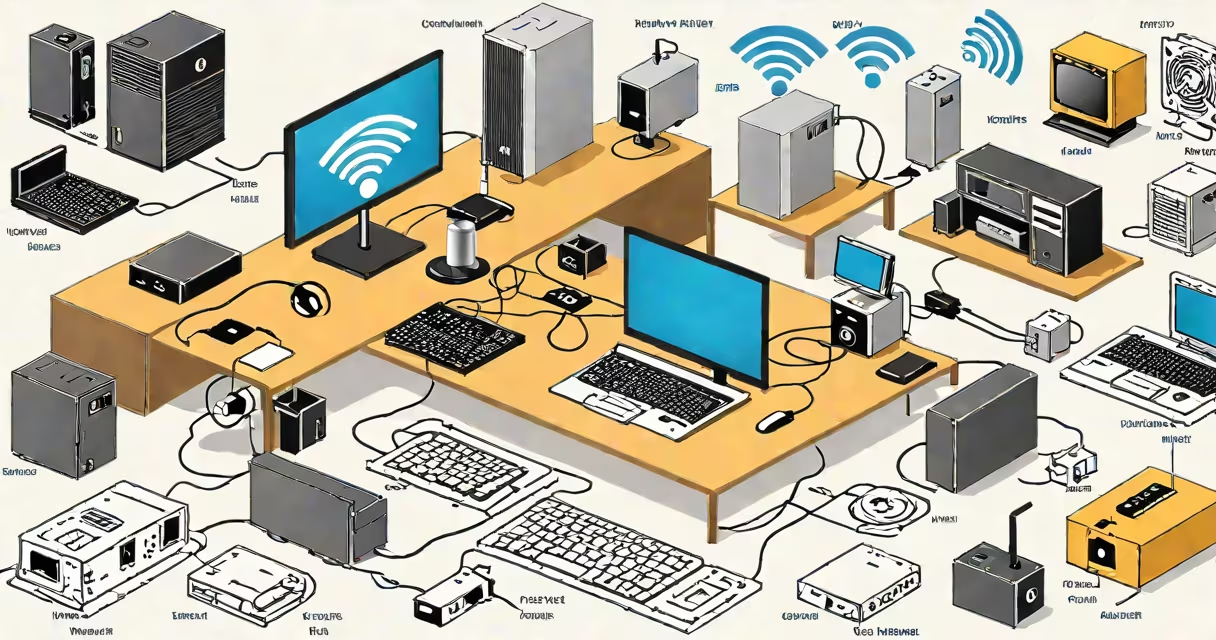
Adding wifi to a computer means equipping it with the ability to connect to wireless networks without Ethernet cables. This requires either built-in wireless hardware or an external adapter that supports Wi-Fi standards like 802.11ac or 802.11ax.
Most modern laptops include integrated Wi-Fi chips. Desktops often lack this feature, requiring a USB Wi-Fi adapter, PCIe card, or internal expansion card. The choice depends on the computer's model, available ports, and intended use. A properly installed adapter enables access to internet services, file sharing, and cloud applications via wireless networks.
For desktop users, the most common solution is a USB Wi-Fi adapter. These plug directly into a USB port and function as plug-and-play devices when drivers are correctly installed. Internal PCIe Wi-Fi cards offer better performance and stability, especially for gaming or streaming. Built-in Wi-Fi is standard on laptops manufactured after 2010, though older models may require upgrades.
Wi-Fi operates on radio frequencies, typically 2.4 GHz or 5 GHz bands. The adapter receives signals from a router and translates them into data the computer can process. Conversely, it sends data back to the router through the same wireless channel. This bidirectional communication happens automatically once the correct network credentials are entered.
When you select a Wi-Fi network, your computer sends a request to the router. The router responds with a signal containing the network name (SSID) and security protocol (like WPA2 or WPA3). Your device then authenticates using the password. After successful authentication, it receives an IP address from the router's DHCP server and gains internet access.
Without a working Wi-Fi adapter, the computer cannot detect wireless networks. Even if the router is broadcasting, the device will show "No networks found" or "No internet connection." This is distinct from router issues or incorrect passwords, which are separate problems.
There are three primary types of Wi-Fi adapters for computers:
| Type | Best For | Pros | Cons |
|---|---|---|---|
| USB Wi-Fi Adapter | Laptops and desktops without built-in Wi-Fi | Plug-and-play, portable, low cost | Can interfere with nearby USB devices, slower speeds |
| PCIe Wi-Fi Card | Desktops with open motherboard slots | Higher throughput, stable signal, supports advanced features | Requires opening the case, not portable |
| Internal Mini-PCIe or M.2 Card | Modern laptops and compact desktops | Integrated design, minimal space usage | Harder to install, limited availability by model |
Installation varies by type. USB adapters usually work immediately after plugging in. Windows detects the device and installs drivers automatically. On macOS, the system often recognizes the adapter within seconds. Linux systems may require manual driver installation depending on the chip manufacturer.
PCIe cards require opening the computer case. You remove the existing expansion slot cover, insert the card into the PCIe slot, secure it with a screw, and close the case. After rebooting, the operating system detects the new hardware. If the card uses a proprietary chipset (like Intel AX210 or Qualcomm QCA9984), download the latest driver from the vendor's website.
I once replaced a failing Wi-Fi card in a 2016 Dell desktop. The original card failed after five years of daily use. I installed a TP-Link Archer T4U v3, a dual-band USB adapter. It connected instantly to my 5 GHz network. The speed improved from 30 Mbps to 120 Mbps, which was enough for HD video calls and online classes.
Many users assume that adding Wi-Fi is simply plugging in a USB adapter. But if the computer doesn't recognize the device, the issue may be outdated drivers, a faulty USB port, or power management settings.
Windows disables USB Wi-Fi adapters by default in power-saving mode. To fix this, go to Device Manager > Network adapters > right-click the Wi-Fi adapter > Properties > Power Management tab > uncheck "Allow the computer to turn off this device to save power."
Another frequent error is selecting the wrong Wi-Fi band. Some routers broadcast both 2.4 GHz and 5 GHz networks under the same name (SSID). Devices may connect to the slower 2.4 GHz band due to range limitations. Manually switching to the 5 GHz network improves speed and reduces interference.
Some adapters fail to support WPA3 encryption, which newer routers use by default. If your computer shows "Authentication failed," check the router's settings. Temporarily disable WPA3 and switch to WPA2-Personal. Reconnect the adapter. Once connected, re-enable WPA3 if supported.
According to the Federal Communications Commission (FCC), over 90% of consumer Wi-Fi devices sold in the U.S. comply with 802.11n and 802.11ac standards. The Wi-Fi Alliance certifies devices for interoperability. Always choose adapters labeled "Wi-Fi 5" (802.11ac) or "Wi-Fi 6" (802.11ax) for optimal performance.
Adding wifi to computer is not the same as setting up a router. A router creates a local network and manages traffic between devices and the internet. Adding Wi-Fi to a computer only enables it to join an existing network.
It's also not the same as installing Ethernet. Ethernet provides wired connections with higher reliability and lower latency. Wi-Fi is inherently less stable due to interference from microwaves, Bluetooth devices, and neighboring networks. However, modern Wi-Fi standards reduce this gap.
A common misconception is that all USB Wi-Fi adapters perform equally. A $10 generic adapter may support only 802.11b/g/n at 150 Mbps. A $30 dual-band adapter with a high-gain antenna can deliver 867 Mbps on 5 GHz. Performance differences stem from chipsets, antennas, and firmware quality.
For example, a user reported poor Wi-Fi performance on a budget USB adapter. The device showed 802.11n support but dropped packets during video calls. Replacing it with a TP-Link TL-WN823N (dual-band, 300 Mbps) resolved the issue. The new adapter had better signal processing and reduced interference.
Always verify compatibility before purchasing. Check your computer's OS version, USB port type (USB 2.0 vs 3.0), and whether the adapter supports your router's frequency bands. A mismatched adapter can result in slow speeds, disconnections, or complete failure to connect.