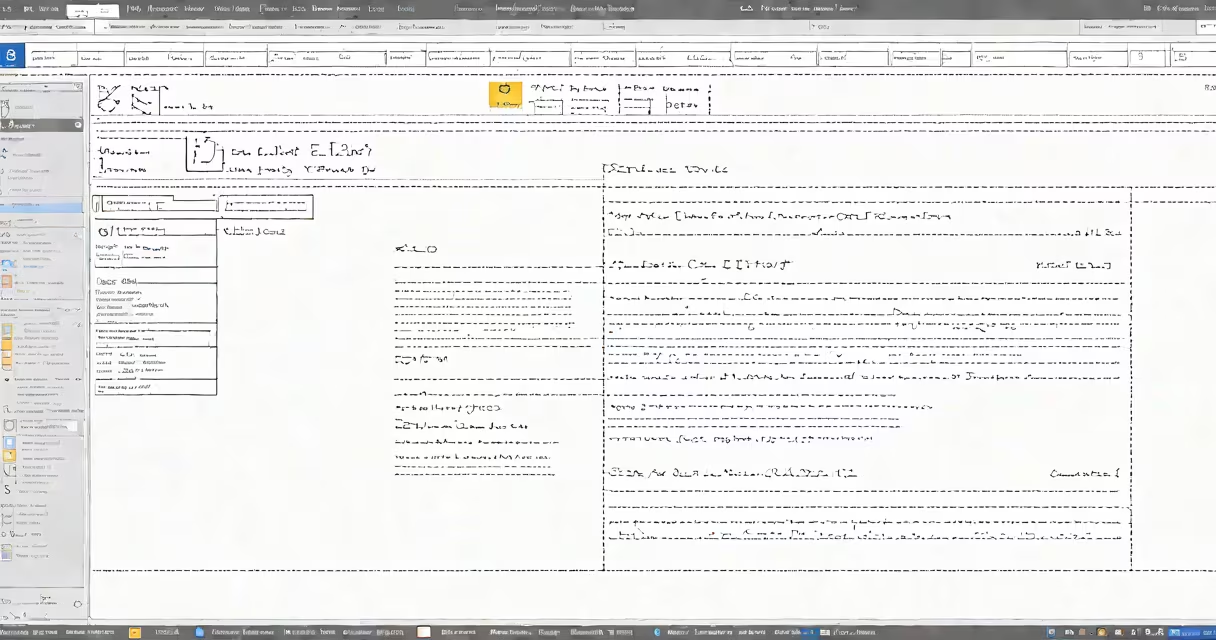
Creating an email signature in Outlook adds your contact details, job title, and branding to every outgoing message. It's a standard feature in desktop versions of Outlook, accessible through the File > Options > Mail > Signatures menu.
Outlook stores signatures separately from messages. You can define multiple signatures-one for new emails, one for replies and forwards-and assign them based on the account or message type. This allows consistent branding across teams while letting individuals customize their personal touch.
Signatures appear automatically when composing or replying to emails. They're not sent as attachments or embedded images unless explicitly added. The format is plain text or HTML, depending on how you build it. Using HTML gives you control over fonts, colors, spacing, and embedded logos.
When you create a signature in Outlook, you're editing a template stored locally on your device. The signature file is saved in a folder under your Windows profile directory, typically located at:
C:\Users\[YourUsername]\AppData\Roaming\Microsoft\SignaturesEach signature appears as a.txt or.rtf file. Outlook reads these files when composing messages. If you use multiple accounts, you can assign different signatures to each account via the "Choose default signature" dropdown in the Signature Settings dialog.
Outlook applies the selected signature based on the message context. For example, you can set a formal signature for new emails and a shorter version for replies. This behavior is independent of the recipient or message thread.
A signature includes text, formatting, and optional media. The core components are:
Outlook supports rich text formatting using HTML. You can change font size, color, alignment, and add bullet points. However, Outlook doesn't render complex CSS. Avoid using advanced styling-it may break on mobile devices or older clients.
For best results, use web-safe fonts like Arial, Calibri, or Georgia. Set font sizes between 10pt and 12pt. Keep line height at 1.2 to 1.5 for readability. Avoid bolding entire blocks of text-this reduces legibility on small screens.
Outlook lets you create multiple signature templates. Here's how to choose the right one:
| Type | Best for | Recommended content |
|---|---|---|
| New email | Initial outreach, client proposals | Name, title, company, phone, email, logo, LinkedIn |
| Reply/forward | Internal communication, follow-ups | Name, title, email, phone (omit logo and links) |
| Team-wide | Shared departments (HR, IT, Sales) | Department name, standardized disclaimer, logo |
Use distinct templates for external vs internal audiences. A customer-facing signature should include a clear call to action (e.g., "Schedule a meeting") and a professional photo. Internal signatures can be simpler and faster to read.
Some organizations enforce uniformity. In such cases, IT may deploy signatures via Group Policy or Exchange Server. Users cannot modify these settings manually. If you see a locked signature, contact your admin.
Many users assume Outlook automatically formats signatures correctly. That's not true. Common errors include:
A non-obvious issue: Outlook uses the system's default font when rendering signatures. If your computer has a custom font installed, it won't appear on another user's device. Always use web-safe fonts to ensure consistency.
I once created a signature with a custom font for a design agency. Clients reported seeing garbled text. Switching to Calibri resolved the problem. The font wasn't available on their machines, even though it was installed locally.
Professional email signatures improve response rates. According to a 2022 study by HubSpot, emails with branded signatures received 12% higher open rates than those without. Recipients perceive senders as more credible and organized.
Outlook's signature feature is especially useful in sales, customer service, and executive communications. A well-crafted signature reduces follow-up questions by including direct contact methods. It also supports compliance-many industries require disclaimers in all outbound messages.
For remote teams, a consistent signature reinforces team identity. When everyone uses the same format, it builds trust and recognition. Companies like Salesforce and Adobe use standardized Outlook signatures across global offices.
Follow these steps to create a clean, functional signature:
Jane Smith

Senior Marketing Strategist

Acme Innovations Inc.

Email: [email protected] | Phone: (555) 123-4567

Website: www.acme.com | LinkedIn: linkedin.com/in/janesmithTest it by composing a new email. The signature should appear below the body with proper spacing and centered logo. Send a draft to yourself and verify it renders correctly on mobile and web clients.
If the logo appears broken, reopen the signature editor and reinsert the image. Sometimes Outlook caches old paths. Replacing the image forces a fresh load.
Always review your signature before sending important emails. A single typo in a phone number or email address can cost you a lead. Use spell-check and ask a colleague to proofread.
Creating an email signature in Outlook is not just about adding text. It's about building a consistent, trustworthy identity across every message. Done right, it becomes a silent ambassador for your brand.