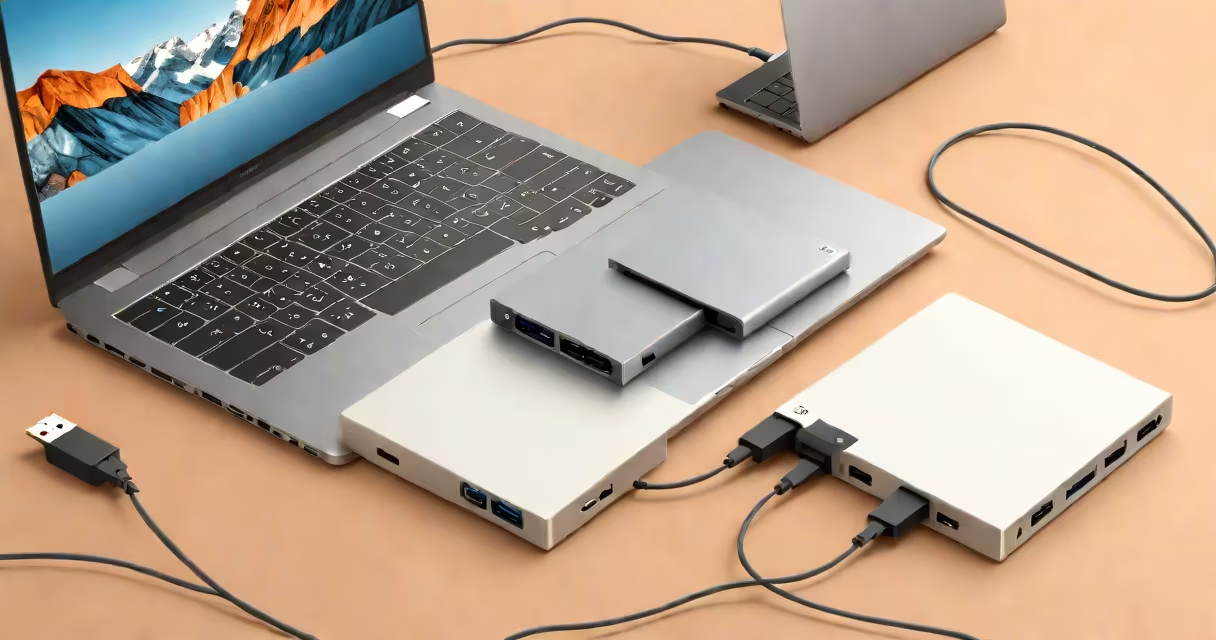
Formatting an external hard drive erases all data and sets up a file system so the device can store and retrieve files on a computer. This process prepares the drive for use with Windows, macOS, or Linux.
When you format a drive, you're not just deleting files-you're rewriting the structure that tells the operating system how to organize data. Without this structure, the drive appears blank or unmounted. Formatting is required when setting up a new drive, recovering from corruption, or changing compatibility between devices.
Use formatting only when you no longer need the data on the drive. Once formatted, files cannot be recovered through normal means. Always back up critical data before proceeding.
Formatting creates a new partition table and file system. The partition table defines how space is divided on the drive. The file system determines how files are named, stored, and accessed.
On Windows, common file systems include NTFS and exFAT. NTFS supports large files and permissions but isn't natively readable by macOS without third-party software. exFAT handles cross-platform compatibility better and is ideal for drives used on both Windows and Mac computers.
macOS uses APFS (Apple File System) for SSDs and HFS+ for older drives. For external drives used across platforms, exFAT is recommended. Linux typically uses ext4, but it's not compatible with Windows or macOS without additional drivers.
Choosing the right file system affects performance, compatibility, and reliability. Here's how they compare:
| File System | Best For | Compatibility | Max File Size |
|---|---|---|---|
| NTFS | Windows-only use | Windows only (read/write) | 16 EB |
| exFAT | Cross-platform sharing | Windows, macOS, Linux (with driver) | 16 EB |
| APFS | macOS with Apple hardware | macOS only (native); limited Windows support | 16 EB |
| HFS+ | Older Mac systems | macOS only (legacy) | 8 TB |
| ext4 | Linux systems | Linux only (native); requires third-party tools on Windows/Mac | 16 EB |
For most users, exFAT is the best choice when sharing files between Windows and macOS. It avoids the limitations of FAT32 (4 GB file size limit) and the proprietary nature of NTFS or APFS.
Microsoft's documentation confirms that exFAT is designed for flash drives and external storage, supporting large files and cross-platform access without requiring special drivers on modern systems.
Use Disk Utility on macOS or Disk Management on Windows to format the drive. Both tools provide visual confirmation and error warnings.
To format on macOS:
To format on Windows:
I formatted a 2 TB external drive using exFAT for a client who needed to transfer video files between a MacBook Pro and a Windows desktop. After formatting, both systems mounted the drive automatically. The client reported no file corruption during transfers.
Many users assume that formatting deletes data permanently. While formatting removes the file system index, raw data may remain recoverable with specialized tools. A single pass overwrite is insufficient for secure deletion.
Some believe that formatting fixes a drive that won't mount. If the drive shows as "unavailable" or "not initialized," formatting may be necessary-but only after confirming the hardware is functional. A failing drive may fail formatting entirely, indicating physical damage.
Another misconception is that formatting improves speed. It doesn't. Performance depends on the drive's interface (USB 3.0 vs. USB 2.0), internal platters, and cache size. Formatting only resets the logical structure.
If you accidentally format a drive containing important data, stop using it immediately. Any new writes risk overwriting recoverable sectors.
Professional recovery services can restore data from formatted drives if the underlying storage media is intact. Tools like PhotoRec or R-Studio can scan for deleted file signatures, but success depends on whether the original data was overwritten.
According to Kroll Ontrack, a leading data recovery firm, successful recovery after formatting is possible in 60-70% of cases when the drive is not reused. However, results degrade rapidly after even minimal new data is written.
For drives with physical failure symptoms-clicking sounds, failure to power on, or intermittent recognition-do not attempt formatting. These signs indicate hardware issues. Attempting to format such drives can worsen damage.
Also avoid formatting if the drive is intended for long-term archival storage. Repeated formatting degrades NAND flash memory in SSD-based drives. A 2 TB external drive used for backups should be formatted only when necessary, not routinely.
Consider using a dedicated backup tool like Time Machine (macOS) or Windows Backup instead of relying on manual formatting for regular data protection.
Always verify the correct drive is selected before formatting. Accidentally selecting the wrong drive-especially one with system files or personal documents-can result in irreversible loss.
After formatting, test the drive by copying a few large files. Check read/write speeds using tools like CrystalDiskMark. A 2 TB external hard drive should sustain 100 MB/s or higher on USB 3.0 connections.
For high-capacity storage needs, consider an external 2 TB hard drive with a 7200 RPM spindle for faster access. These drives outperform 5400 RPM models in sequential throughput.
When working with cloud storage, remember that Google's external hard drive integration (via Google Drive sync) relies on local file systems. Formatting the drive changes the mount point and may disrupt automatic syncing unless reconfigured.
Formatting an external hard drive is a straightforward but irreversible action. Plan carefully, confirm compatibility, and back up data before proceeding. Use exFAT for cross-platform use, NTFS for Windows-only environments, and APFS for Apple ecosystems.