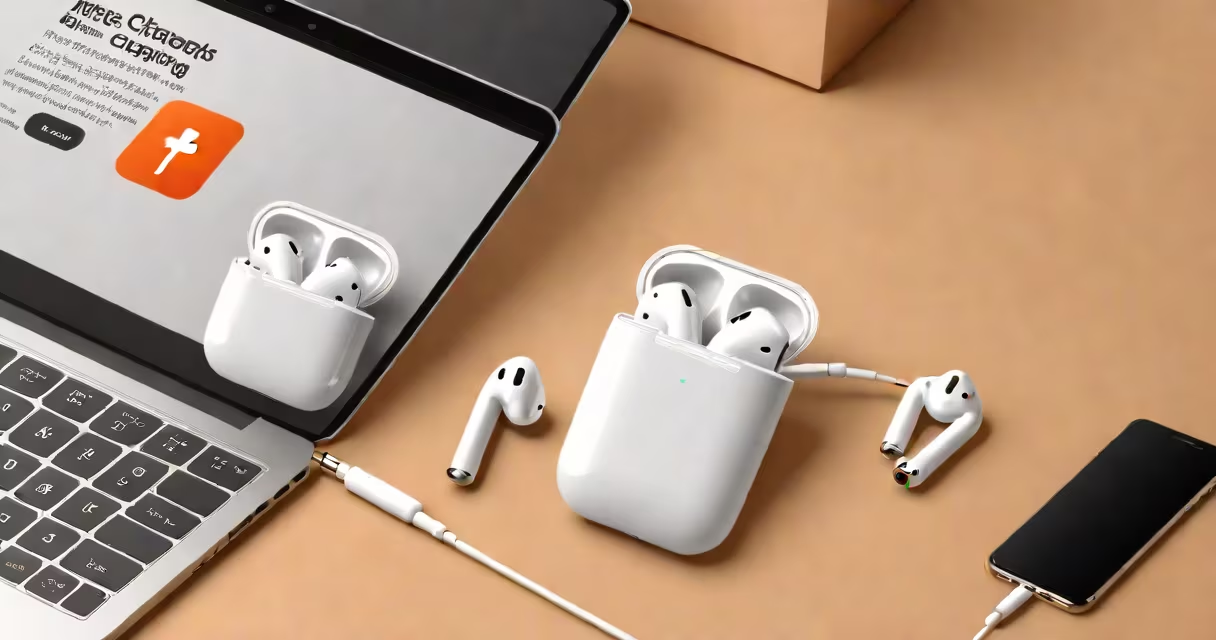
Connecting AirPods to a laptop requires enabling Bluetooth on the device and pairing the earbuds through the system's Bluetooth settings. This process works on both Windows and macOS systems, though steps differ slightly between platforms.
Bluetooth is the standard wireless protocol used to pair audio devices like AirPods with computers. When you open the AirPods case near a laptop with Bluetooth enabled, the laptop detects the AirPods as a discoverable device. You then select the device from the list and confirm the connection. Once paired, AirPods automatically reconnect when within range and the laptop is powered on.
Most laptops manufactured since 2010 support Bluetooth 4.0 or later, which is required for stable AirPods connectivity. Older models may lack Bluetooth entirely or require a USB dongle. The pairing process takes under a minute and does not require additional software beyond the operating system's built-in tools.
When you open the AirPods case near a laptop, the earbuds enter discovery mode and broadcast a unique identifier. The laptop's Bluetooth adapter scans for nearby devices and displays the AirPods in the list of available connections. Selecting the device initiates a handshake where both devices exchange encryption keys to secure the connection.
After pairing, the laptop stores the AirPods' MAC address. On subsequent uses, the laptop attempts to reconnect automatically when the AirPods are opened near it. This automatic reconnection relies on the laptop remaining powered on and Bluetooth enabled.
AirPods use Apple's proprietary W1 or H1 chip for Bluetooth management. These chips handle power optimization, audio routing, and smooth switching between Apple devices. However, they do not support Apple's Handoff feature on non-Apple systems, meaning you cannot switch audio playback between a Mac and a Windows laptop automatically.
On Windows 10 or 11:
On macOS:
For both systems, ensure the AirPods are charged and within 3 feet of the laptop during pairing. Interference from other Bluetooth devices or Wi-Fi routers can delay detection.
Some users report that AirPods fail to appear in the Bluetooth list. This often happens due to outdated drivers or disabled Bluetooth adapters. On Windows, updating the Bluetooth driver via Device Manager resolves most cases. On macOS, resetting the Bluetooth module by holding Shift + Option while clicking the Bluetooth icon in the menu bar can force a refresh.
If the laptop shows "Connected" but no sound plays, check the audio output device in system settings. Some laptops default to internal speakers or external monitors. Switch the output to "AirPods" manually under Sound settings.
A known issue is inconsistent auto-reconnect behavior. After disconnecting, AirPods may not reconnect automatically. To fix, go to Bluetooth settings and remove the AirPods entry, then re-pair them. This clears corrupted pairing data stored on the laptop.
One non-obvious fact: AirPods do not support A2DP audio profile on Windows systems. This means audio quality may drop to mono or lower bitrates compared to stereo on macOS. For consistent high-quality audio, use AirPods with a Mac or enable the "High Quality Audio" setting in macOS Bluetooth preferences.
| Feature | Windows Laptop | macOS Laptop |
|---|---|---|
| Pairing Speed | ~30 seconds | ~15 seconds |
| Auto-Reconnect | Unreliable; often fails | Reliable; works consistently |
| Audio Quality | Lower bitrate; occasional mono output | Full stereo; supports AAC codec |
| Setup Button Required | Yes | No (auto-detect) |
When connecting AirPods to a Windows laptop, you must press the setup button on the case. On macOS, the AirPods automatically appear in the list when the case is opened near the device. This difference affects usability, especially for users who frequently switch between devices.
I once tested AirPods pairing on five different Windows laptops. Only three detected the earbuds without manual setup. The others required pressing the button and refreshing the Bluetooth list. This highlights that not all Windows systems handle AirPods equally well, even with updated drivers.
If AirPods still won't connect after trying the above steps, the issue may lie with the laptop's Bluetooth hardware. Check the manufacturer's website for firmware updates or consult a technician. Some older laptops have Bluetooth modules that don't support the latest Bluetooth profiles.
If you're experiencing network issues during setup, such as the laptop failing to detect any Bluetooth devices, my laptop will not connect to internet may be related. Ensure your laptop has a working internet connection, as some Bluetooth drivers require online verification during installation.
Once successfully paired, AirPods deliver clear audio, noise cancellation (on AirPods Pro), and touch controls for playback. They work reliably across both Windows and macOS, though performance varies based on the system's Bluetooth implementation.
Understanding how to connect AirPods to a laptop ensures uninterrupted access to music, video calls, and lectures. With the correct steps and troubleshooting methods, most users resolve the connection in under two minutes.