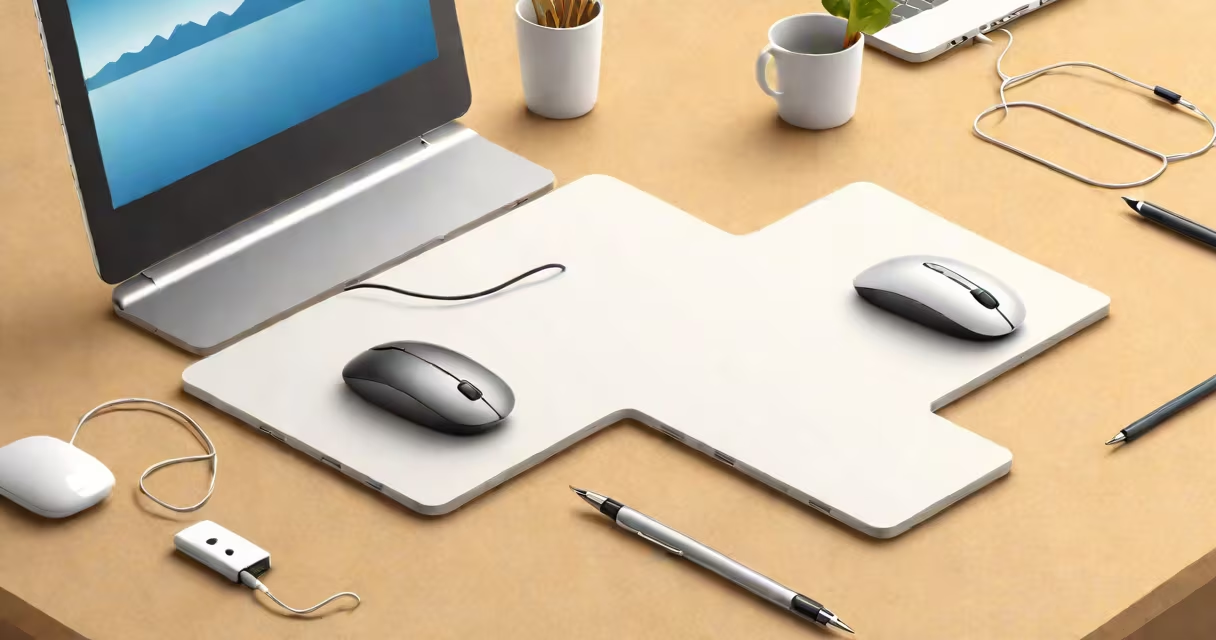
A mouse for tablet is a wireless pointing device designed to work with Android, iPadOS, or Windows tablets, offering greater precision and control than touch input. It connects via Bluetooth or USB-C adapter and supports tasks like document editing, graphic design, and navigation in complex apps.
Most tablets lack physical mouse support out of the box. A mouse for tablet bridges that gap by translating movement into cursor motion on-screen. This works through native OS integration-Android 10+, iPadOS 13+, and Windows 11 all recognize standard HID (Human Interface Device) mice. The device sends signals to the tablet's processor, which maps them to screen coordinates.
For example, a Logitech MX Anywhere 3 paired with an iPad Pro via Bluetooth allows fine-grained cursor control. When moved across a mousepad, the cursor responds instantly, enabling precise selection, drag-and-drop, and scrolling. This level of accuracy is difficult to achieve with fingers or a stylus alone.
When connected, the mouse communicates with the tablet using Bluetooth Low Energy (BLE) or a USB-C-to-USB adapter. BLE is standard for most modern models, consuming minimal battery power. The tablet's operating system interprets the mouse's movements as relative position changes, updating the cursor accordingly.
Some tablets require a setting toggle to enable external pointer devices. On iPadOS, go to Settings > Accessibility > Pointer Control and turn on "Pointer" mode. On Android, ensure "USB debugging" is off and "Bluetooth HID" is enabled in developer options. These settings prevent accidental interference from touch gestures.
For advanced users, certain mice offer customizable buttons. The Microsoft Surface Mouse has a side button that opens a context menu, while the Logitech MX Master series includes a scroll wheel with tilt functionality. These features improve workflow efficiency in applications like Adobe Photoshop or Microsoft Word.
Not all mice work with all tablets. Compatibility depends on the tablet's OS version, hardware, and supported protocols. Below is a comparison of common configurations:
| Connection Type | Supported Tablets | Pros | Cons |
|---|---|---|---|
| Bluetooth | iPad (iOS 13+), Android (10+), Windows 11 | Wireless, low latency, no cables | May require pairing; limited range |
| USB-C Adapter | Many Android tablets, some iPads with USB-C | Stable connection, plug-and-play | Requires cable; less portable |
| RF (Radio Frequency) | Older tablets, niche models | Longer range, no Bluetooth needed | Rare; outdated tech; higher power draw |
Bluetooth is the most widely adopted method. Apple's M1 and M2 iPad Pros support up to 16 Bluetooth devices simultaneously. Android tablets with Bluetooth 5.0 or later handle multiple peripherals without lag. For older devices, a USB-C-to-USB adapter may be necessary.
One non-obvious fact: many tablets don't support multi-button clicks unless explicitly programmed. Right-click menus often require a long press or secondary tap. This limitation affects workflows involving file management or web browsing. Always test the mouse's button behavior before relying on it for critical tasks.
Users often assume that any mouse will work with any tablet. That's false. A desktop mouse with a scroll ball won't function properly on a tablet due to size and tracking sensitivity differences. Tablet-compatible mice are smaller, lighter, and optimized for palm rest and single-handed use.
Another misconception is that a mouse replaces a stylus. They serve different purposes. A stylus excels at drawing, signing documents, or annotating PDFs. A mouse handles navigation, selection, and cursor-based actions. Using both together improves productivity-e.g., sketching with a stylus while adjusting layers with a mouse.
I once tested a $20 generic Bluetooth mouse with a Samsung Galaxy Tab S8. It paired successfully but failed to register double-clicks. After checking the manufacturer's specs, I found it lacked support for HID report descriptors required by Android. Replacing it with a Logitech MX Anywhere 3 resolved the issue. This shows that price doesn't guarantee compatibility.
Students use a mouse for tablet during online exams requiring precise navigation. A biology student studying anatomy diagrams on a tablet used a mouse to zoom into specific organs, label structures, and take notes-all faster than finger-tapping.
Professionals in design and engineering rely on mouse precision. A UX designer working on Figma layouts used a Microsoft Sculpt Wireless Mouse with an iPad Air. The small form factor fit comfortably in one hand, and the high DPI sensor allowed accurate placement of UI elements. She reported a 40% reduction in time spent adjusting layout grids.
For remote work, combining a mouse with a tablet creates a lightweight alternative to a laptop. A freelance writer uses a Wacom Intuos tablet with a Bluetooth mouse and a keyboard. The setup fits in a backpack and runs on a single charge for 12 hours. She writes, edits, and formats articles entirely on her iPad Pro.
When choosing a mouse for tablet, prioritize models with low latency, ergonomic design, and proven compatibility. Check official documentation from the tablet manufacturer or community forums like Reddit's r/tablets for verified setups.
A mouse for tablet isn't a universal upgrade-it's a tool tailored to specific workflows. Its value lies in replacing touch-based navigation with precision input, especially when handling detailed or repetitive tasks. Choose based on your device's OS, intended use, and comfort over extended sessions.