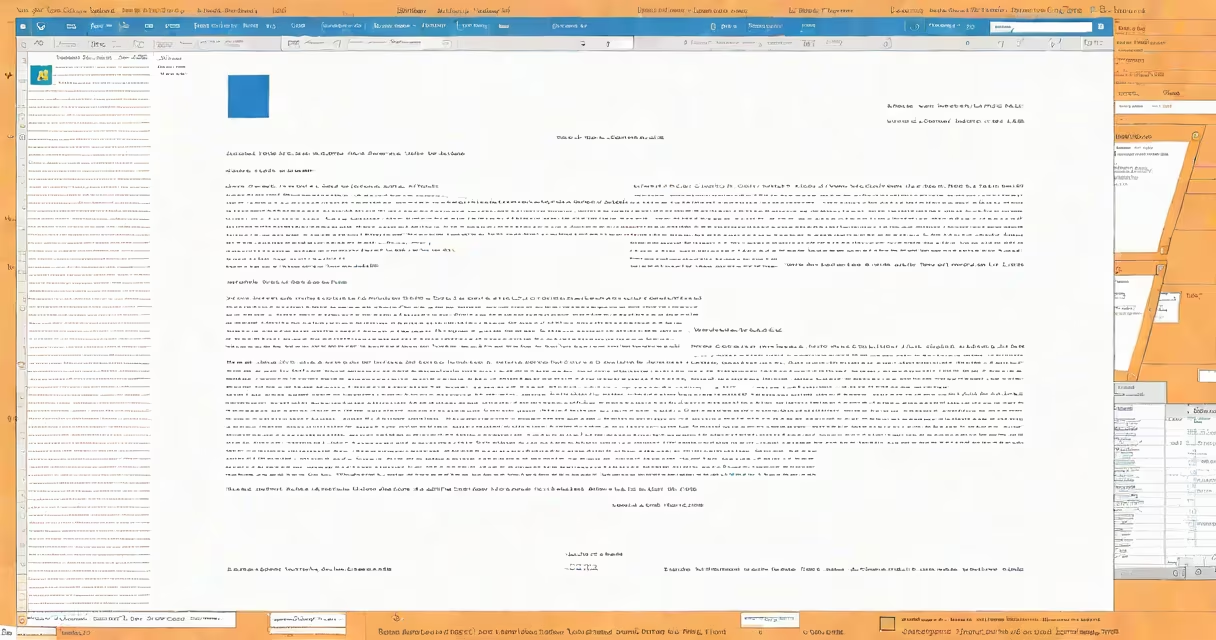
An office word document is a file format developed by Microsoft for creating, editing, and sharing formatted text documents. It uses the .docx extension and supports rich text features like fonts, images, tables, and embedded objects. This format is the standard for business reports, resumes, letters, and academic papers.
Word documents are built using Office Open XML, a standardized structure based on ZIP-compressed folders containing XML files. These files store content, formatting instructions, and metadata such as author name, creation date, and revision history. Unlike plain text files (.txt), which only hold raw characters, .docx files preserve visual layout and advanced styling.
Microsoft introduced the .docx format in 2007 to replace the older .doc binary format. The change improved file reliability, reduced corruption risk, and enabled better compatibility across platforms. Today, .docx files are supported natively by Microsoft Word, Google Docs, LibreOffice, and most modern word processors.
When you create a document in Microsoft Word, the software saves your work as a compressed archive. Inside this archive are multiple XML files that define each element: text content, font styles, margins, headers, footers, and embedded media. The main content resides in a file called document.xml, while styles are stored in styles.xml.
For example, typing "Project Report" in bold, size 16, and blue color generates specific XML tags like <w:b/>, <w:sz w:val="32"/>, and <w:color w:val="FF0000"/>. These tags instruct the rendering engine how to display the text. When you open the file, the application reads these instructions and rebuilds the visual layout.
Changes are saved incrementally. If you edit a paragraph, Word updates only the relevant XML fragments rather than rewriting the entire file. This improves performance and reduces disk usage, especially for large documents.
Office word documents come in several variants depending on purpose and content:
| Type | Use Case | Example |
|---|---|---|
| Standard .docx | General text editing | Business proposal, personal letter |
| Template (.dotx) | Repeating layouts | Invoice form, meeting agenda |
| Protected .docm | Macro-enabled files | Automated report generator |
| Read-only .doc | Legacy compatibility | Older system environments |
Most users interact with standard .docx files. They're ideal for collaborative work because they support track changes, comments, and version control. Teams use them for drafting contracts, compiling research summaries, and preparing presentations.
One non-obvious fact: Word documents can contain hidden data even after deleting visible content. Metadata such as the original author's name, last editor, and revision timestamps may persist unless explicitly removed. According to Microsoft's documentation, this information can be accessed via File > Info > Check for Issues > Inspect Document.
Many people mistake a Word document for a PDF. While both store formatted text, they serve different purposes. A PDF preserves layout exactly across devices and prevents editing. A Word document allows ongoing modification and collaboration. Converting a .docx to PDF locks in formatting but removes editability.
Another frequent error is assuming that saving a document as ".doc" or ".docx" doesn't affect functionality. In reality,.doc files are less secure and prone to corruption. They also lack support for newer features like embedded fonts and advanced animations. For long-term storage,.docx is preferred.
I once recovered a lost project file by renaming a corrupted .docx file to .zip and extracting its contents. Inside, I found a damaged document.xml file. By copying the text from a backup version and pasting it into a fresh .docx, I restored the full document within minutes. This technique works because the .docx structure is transparent and accessible to anyone with basic file tools.
If you lose a word document, recovery depends on whether backups exist. Windows automatically creates temporary versions during editing. To access them, go to File > Info > Manage Versions. If the file was recently closed, you may find a "Recovered" copy under Recent Documents.
For permanently deleted files, tools like Recuva or Disk Drill can scan the drive for remnants. However, success rates drop after the recycle bin is emptied. Always enable AutoSave in Word to reduce risk. With cloud sync turned on, your document is backed up to OneDrive or SharePoint.
Metadata in a word document can reveal sensitive details. A 2021 study by the National Institute of Standards and Technology (NIST) found that 43% of public-facing Word documents still contained unremoved authorship data. To remove this, use the built-in Document Inspector tool found under File > Info > Check for Issues. This feature scans for hidden text, comments, and personal info.
Understanding the structure and behavior of office word documents helps prevent data loss and enhances workflow efficiency. managing team edits, knowing how the format stores and protects information makes a tangible difference in daily productivity.
Office word document files remain central to professional communication. Their ability to balance rich formatting with cross-platform accessibility ensures continued relevance in both corporate and academic settings.