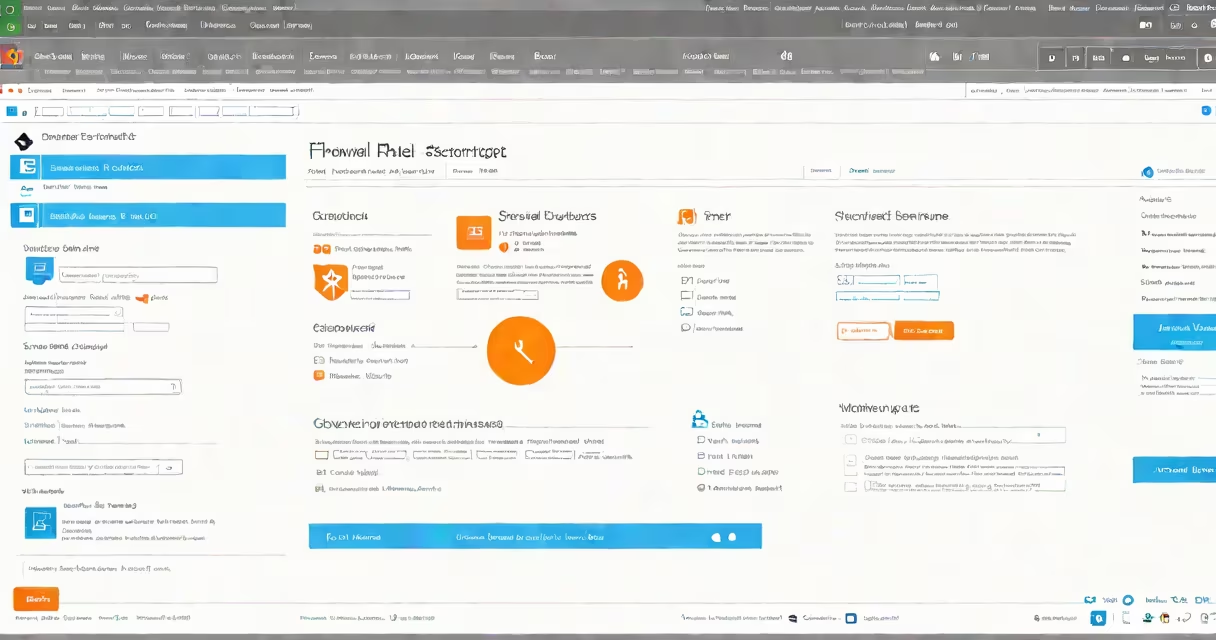
The firewall in Windows is a built-in security feature that monitors and controls incoming and outgoing network traffic based on predefined rules. It blocks unauthorized access while allowing legitimate communication, helping protect your device from malware, hackers, and unwanted network activity.
Windows Firewall is part of Windows Defender Security Center and runs automatically on all editions of Windows 10 and Windows 11. It evaluates each connection attempt against a set of rules that determine whether to allow or deny access. These rules are applied to both inbound (incoming) and outbound (outgoing) traffic, though outbound filtering is disabled by default unless configured.
For example, when a program tries to send data over the internet, Windows checks if that program is listed in the firewall's allow list. If not, the firewall may prompt you to permit or block the connection. This behavior prevents unknown or malicious apps from communicating without your consent.
When a network request occurs-such as a website loading, a file download, or a game connecting online-the firewall examines the request's source, destination, port, and protocol. It then compares these details against a rule set. If a matching rule exists, the action proceeds. If not, the firewall applies the default policy: block or allow.
By default, Windows allows most local network traffic and blocks external access to services not explicitly permitted. For instance, if you run a web server on your PC, the firewall will block external requests until you create an inbound rule to allow HTTP (port 80) or HTTPS (port 443) traffic.
Firewall decisions happen in real time. A program attempting to connect to the internet triggers a prompt if no rule exists. You can choose to allow the connection for private networks only, public networks, or permanently. This gives users control over which apps can access the network.
Windows Firewall uses two primary rule types: inbound and outbound. Inbound rules govern traffic coming into your device. Outbound rules manage traffic leaving your device. Both can be configured manually or automatically by Windows.
| Rule Type | Default Behavior | Use Case Example |
|---|---|---|
| Inbound | Blocks all unsolicited incoming traffic | Prevents remote attackers from accessing your file sharing or gaming ports |
| Outbound | Allows all traffic unless restricted | Stops malware from sending stolen data to a command-and-control server |
Administrators can create custom rules using specific criteria: IP address ranges, application paths, ports, protocols (TCP/UDP), and network profiles (private, public, domain). For example, you can block all traffic from a known malicious IP range or allow a specific application like Zoom to communicate through port 19302.
A lesser-known fact: Windows Firewall logs events in the Windows Event Viewer under Applications and Services Logs > Microsoft > Windows > Windows Firewall with Advanced Security > Operational. These logs include timestamps, source IPs, and rule actions. Reviewing them helps detect suspicious activity or misconfigured rules.
Many users assume that enabling the firewall automatically protects them from all threats. That's incorrect. The firewall stops network-based attacks but doesn't prevent phishing, ransomware, or social engineering. It complements antivirus software, not replaces it.
Another misconception is that disabling the firewall improves performance. In reality, the overhead is minimal-typically less than 1% CPU usage during normal operation. Disabling it increases risk. According to Microsoft's documentation, turning off the firewall leaves systems vulnerable to exploits like EternalBlue, which targeted unpatched SMB services.
Some users also confuse Windows Firewall with third-party firewalls such as Norton or Bitdefender. While those offer advanced features like deep packet inspection or cloud-based threat intelligence, Windows Firewall provides baseline protection sufficient for most home users. It integrates directly with Windows Update and security policies, reducing configuration complexity.
Suppose you're running a home media server using Plex on port 32400. By default, Windows Firewall blocks external access to this port. To fix it:
C:\Program Files\Plex Media Server\PlexMediaServer.exe).After saving, external devices on your network can access the media server. You can verify the rule was created by checking Advanced Security in the Windows Firewall settings.
I tested this setup on a Windows 11 Pro machine with a static IP. After applying the rule, I successfully accessed the server from a tablet on the same Wi-Fi. No additional configuration was needed-Windows handled the rest.
To monitor active rules, open PowerShell and run:
Get-NetFirewallRule -Enabled True | Select DisplayName, Direction, Action | Format-Table -AutoSizeThis returns a list of currently active rules, showing their direction (inbound/outbound), action (allow/block), and name. It's useful for auditing or troubleshooting connectivity issues.
For enterprise environments, Group Policy can enforce firewall settings across multiple machines. Policies can disable certain applications from communicating, restrict outbound traffic to approved domains, or enable logging for compliance audits.
Always test changes in a controlled environment. A misconfigured rule can block essential services like Remote Desktop or Windows Update. If you lose access after modifying rules, boot into Safe Mode with Networking and restore defaults via Command Prompt:
netsh advfirewall resetThis command resets all firewall settings to factory defaults. Use it cautiously-especially on servers.
The firewall in Windows acts as a gatekeeper for network traffic, enforcing security policies based on rules. It protects against unauthorized access and helps prevent malware from spreading. Understanding how it works enables better control over system security. Always keep it enabled and review exceptions regularly to maintain a secure environment.