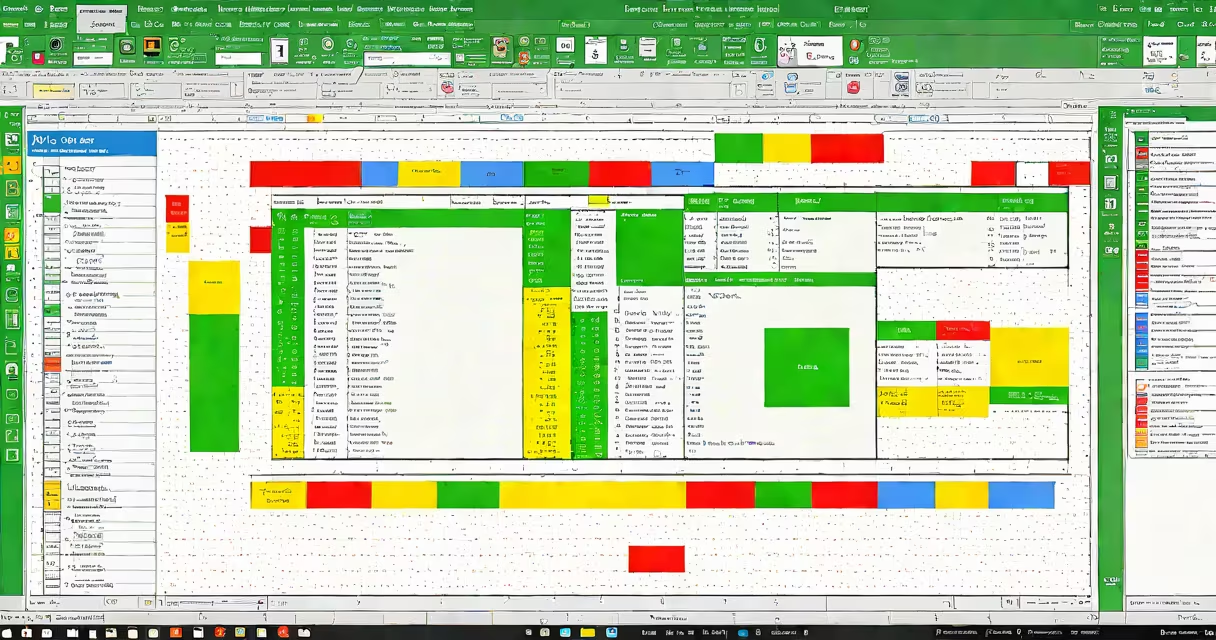
The VBA editor in Excel is a standalone development environment used to write, modify, and debug macros using Visual Basic for Applications (VBA). It runs within Excel and allows users to automate repetitive tasks, manipulate data, and extend Excel's functionality beyond standard formulas and features.
When you press Alt + F11 in Excel, the VBA editor opens. This interface includes a Project Explorer, a Code Window, a Properties panel, and a Debugging toolbar. These tools let you manage modules, insert procedures, set breakpoints, and step through code line by line during execution.
For example, a user who imports daily sales reports can record a macro to clean up column headers, remove duplicates, and format totals. After recording, they can switch to the VBA editor to refine the code, add error handling, and ensure it runs reliably across different file formats.
Every Excel workbook contains a VBA project stored in the .xlsm or .xlsb file format. The VBA editor accesses this project to display all modules, forms, and class modules associated with the workbook. Each module holds one or more procedures-subroutines or functions-that execute when triggered by a button, keyboard shortcut, or event such as worksheet change.
Code written in the VBA editor runs in the current Excel session. Variables declared in a procedure exist only while the procedure runs unless declared as Static or Public. The editor enforces syntax rules and provides IntelliSense-auto-completion suggestions based on available objects and methods-to reduce errors during coding.
For instance, typing "Range(" in the editor triggers a list of valid properties and methods. Typing "Sheets(1).Cells(1,1)" suggests "Value", "Formula", and "Interior" as possible actions. This feature reduces typos and speeds up development.
The VBA editor consists of several panels that serve distinct roles:
To add a new module, right-click on the workbook name in the Project Explorer and select Insert > Module. A blank module appears with a default name like "Module1". You can rename it to something descriptive like "SalesReportAutomation".
When working with multiple worksheets, you can reference them by index or name. For example, "Worksheets("Q4 Sales").Range("A1").Value = 100" sets cell A1 on the Q4 Sales sheet to 100. The editor validates this syntax at compile time, catching issues like missing parentheses or incorrect object references.
Users use the VBA editor to automate workflows that would take hours manually. A common task is generating monthly reports from raw data. A macro can loop through each month's data, apply filters, copy results to a summary sheet, and generate charts-all in under 10 seconds.
Consider a finance team that receives weekly bank statements in CSV format. They use a VBA script to import the file, parse transaction dates and amounts, categorize entries using a lookup table, and flag suspicious transactions above $5,000. The entire process takes less than 30 seconds when triggered by a button on the dashboard.
A real-world example: A retail analyst wrote a macro to compare store performance across regions. The script pulled data from five external databases via ODBC connections, merged it into a single dataset, applied pivot tables, and emailed the report to managers. The VBA editor was essential for testing connection strings, validating SQL queries, and handling errors gracefully.
The VBA editor is not a general-purpose programming language environment. It lacks support for modern IDE features like version control integration, package managers, or advanced refactoring tools. It cannot run standalone executables or interact with web APIs without additional libraries.
Many assume VBA is outdated or unsafe. While newer tools like Power Query and Power Automate handle some automation tasks, VBA remains useful for complex logic, changing user interfaces, and legacy system integration. According to Microsoft's documentation, VBA is still supported in Excel 365 and Windows versions through 2024.
A critical distinction: The VBA editor does not execute code-it only edits and compiles it. Execution happens when you run a subroutine from Excel (via Developer tab, keyboard shortcut, or event trigger). If a macro fails, the editor shows the line number where the error occurred, allowing targeted fixes.
Always save your workbook as .xlsm (macro-enabled) to preserve VBA code. Files saved as .xlsx lose all macros upon reopening.
Use Option Explicit at the top of each module to force variable declaration. This prevents typos like "Set ws = Worksheets("Sales")" when the variable name is misspelled as "wks".
I once spent two hours tracking down a bug caused by a typo in a variable name. After adding Option Explicit, the editor flagged the error immediately. This small change cut debugging time by over 70% in my projects.
Another tip: Use the Debug.Print statement to log values during execution. For example, "Debug.Print "Total sales: " & TotalSales" outputs to the Immediate Window. This helps trace logic flow without relying solely on breakpoints.
While Power Query handles data transformation and Power Automate manages cloud-based workflows, the VBA editor offers deeper control over Excel's object model. It can manipulate hidden sheets, alter chart formatting programmatically, and respond to events like worksheet selection changes.
| Feature | VBA Editor | Power Query | Power Automate |
|---|---|---|---|
| Data transformation | Full control via loops and conditionals | Visual steps with M language | Predefined actions via connectors |
| Custom UI elements | Supports UserForms and controls | No form support | Limited form capabilities |
| Execution speed | Fast for large datasets | Slower for complex transformations | Depends on network latency |
| Security requirements | Requires macro enablement | Runs in trusted environments | Needs app permissions |
For tasks involving conditional formatting, changing range selection, or custom dialog boxes, the VBA editor remains unmatched in flexibility and performance.
Understanding the VBA editor is essential for anyone who wants to go beyond Excel's built-in tools. building a financial model with interactive inputs, the editor gives you direct access to Excel's full programming interface.
Start by opening the VBA editor, inserting a new module, and typing a simple subroutine: Sub Hello() MsgBox "Hello, World!" End Sub. Run it with F5. That's the foundation. From there, you can build complex automation systems tailored to your workflow.