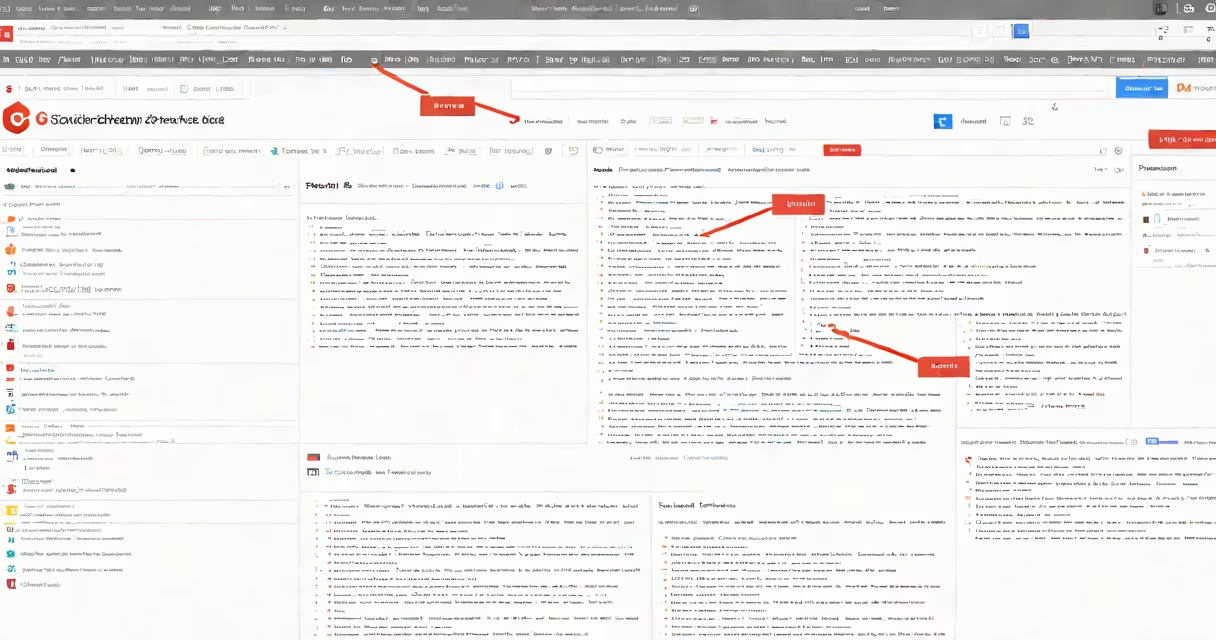
Use Gmail's search bar with keywords, filters, and operators to locate specific emails instantly. Enter terms like "from:manager subject:report" to narrow results by sender, subject, date, or file type.
Gmail's search engine processes queries in real time. Type a word, phrase, or combination of filters into the search bar at the top of your inbox. Gmail returns matching messages within milliseconds. This system uses natural language parsing and Boolean logic, allowing users to combine multiple criteria efficiently.
For example, typing "read:yes label:work" retrieves all read emails in the work label. The search engine understands context, so "sent:2024-06-15" finds messages sent on that date regardless of format. You don't need to remember exact syntax-Gmail adapts to common phrasing.
Gmail scans your entire mailbox, including archived and deleted messages (if they're still recoverable). It indexes content, headers, attachments, and metadata. When you type a query, it matches against this index rather than scanning each message individually.
Search results appear instantly below the search bar. Click any result to open the message. You can also use keyboard shortcuts: press "/" to focus the search bar, then type your query.
For complex searches, use advanced operators. These are not optional-they're built into Gmail's core functionality. They allow you to filter by sender, recipient, date, attachment presence, and more. Without them, searching becomes inefficient.
Use these operators to refine results. Combine them with spaces or parentheses for layered filtering.
| Operator | Meaning | Example |
|---|---|---|
from: |
Matches sender address | from:[email protected] |
to: |
Matches recipient address | to:[email protected] |
subject: |
Searches message subject line | subject:invoice |
has:attachment |
Finds messages with files attached | has:attachment |
before: |
Messages sent before a date | before:2024-05-01 |
after: |
Messages sent after a date | after:2024-06-01 |
size: |
Filters by message size in bytes | size:1000000 |
Combine operators: from:[email protected] subject:contract after:2024-06-01 finds contract-related emails from a client after June 1st. Gmail supports parentheses for grouping: (from:boss subject:review) after:2024-06-10.
Use in: to search within labels. Typing in:work limits results to the "work" label. Use in:inbox to restrict to current inbox. These are essential for managing large volumes.
Many users assume Gmail searches only the current view. It doesn't. The search function spans all folders, including spam, trash, and archives. If you don't see a message, it may have been deleted or filtered out-but the search will still find it if it exists.
Another error: relying solely on the search bar's autocomplete. It suggests recent terms but doesn't show all available filters. Always type the full operator to avoid missing results.
A lesser-known fact: Gmail ignores case in most searches. "Invoice" and "INVOICE" return the same results. But operators like from: are case-sensitive for email addresses. Typing from:[email protected] won't match [email protected] unless the capitalization is exact.
You received a project update email from your team lead on May 20, 2024, but forgot to save it. You need the document attached. Here's how to find it:
from:[email protected] subject:project update after:2024-05-20 before:2024-05-21 in the search bar.The search narrowed to one sender, a specific subject, and a single-day window. The after: and before: operators excluded unrelated messages. This took under 15 seconds.
Without operators, you'd have to scroll through weeks of emails. With them, you isolate the exact message.
If a message doesn't appear despite correct syntax, check for typos. Gmail is sensitive to spacing and punctuation. A missing space between operators causes errors. For example, from:boss subject:meeting works. from:bosssubject:meeting fails.
Also verify the message hasn't been permanently deleted. Messages in trash are searchable for 30 days. After that, they're gone. If you suspect deletion, try retrieving the message from backup or Google Vault.
Some users report that searches return empty results when using quotation marks around phrases. That's because Gmail treats quoted strings as exact matches. If the subject says "Project Update - Final Draft," searching for "project update" won't match unless the exact sequence appears.
Start with the most specific term. If you know the sender and subject, begin with from: and subject:. Then add date or attachment filters.
Save frequently used searches as filters. Go to Settings > See all settings > Filters and Blocked Addresses. Create a filter that applies a label to all emails matching a query. This turns one-time searches into automatic organization.
Use finding your mail in Gmail to understand folder behavior. Some messages appear in "All Mail" but not "Inbox." Search results include them all.
Firsthand, I once missed a job offer email because I searched only by subject. The actual subject was "Offer - HR Confirmation - [Your Name]." I had to use from:[email protected] subject:offer to retrieve it. That's why combining sender and subject is critical.
For temporary needs, use 10minute mail Gmail to test search behavior without affecting your primary account.
Understanding how to search a mail in Gmail reduces time spent sifting through messages. It turns a cluttered inbox into a functional workspace. Mastering operators lets you act quickly, especially during high-pressure tasks like deadlines or audits.
Use has:attachment to find all emails with files. Use label:important to access priority messages. Use unread to check pending replies. These aren't just tools-they're daily workflows.
Every Gmail user should know how to search a mail in Gmail effectively. The ability to locate a single message among thousands isn't luck-it's skill. Practice with real scenarios. Build custom queries. Make search your default action, not a last resort.